Compare Project Versions
Written By Team BugSmash
Last updated 29 days ago
When a project goes through multiple rounds of feedback, it can be difficult to remember exactly what changed between one version and another.
Version Comparison lets you view two versions of the same project side by side, so you can easily review changes, check whether feedback has been implemented, and see how the project has improved over time.
For example, you can compare V1 and V2 to see what changed, review the feedback from the previous version, and check how the latest version looks after those changes were made.
How to access Version Comparison
You can find Version Comparison in the top-left corner of the project review page.
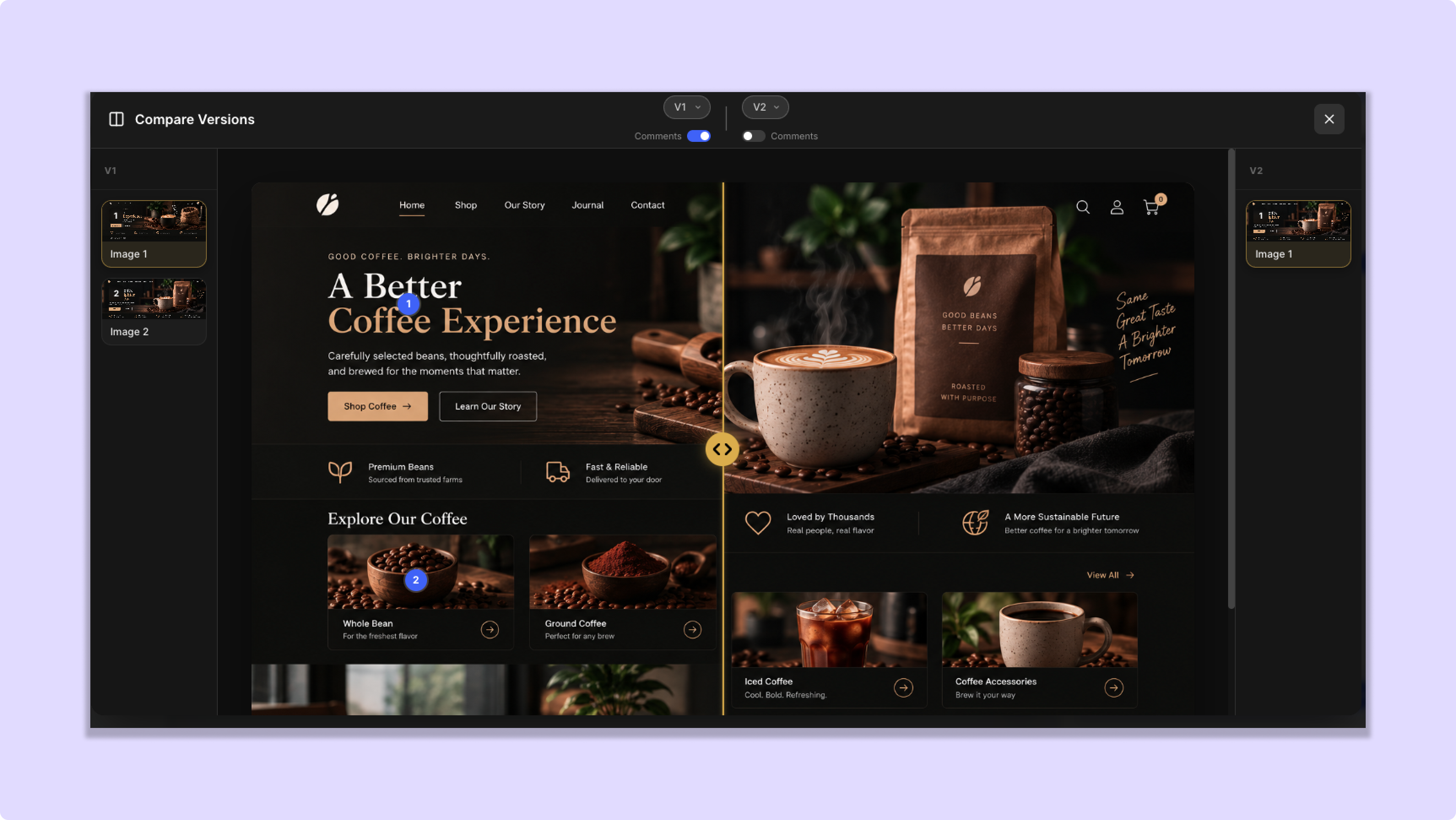
Once you open it, you'll see two versions displayed side by side. You can select the version you want to compare from the dropdown at the top of each side.
For example:
V1 ↔ V2
This allows you to keep the previous and latest versions open at the same time instead of switching between them.
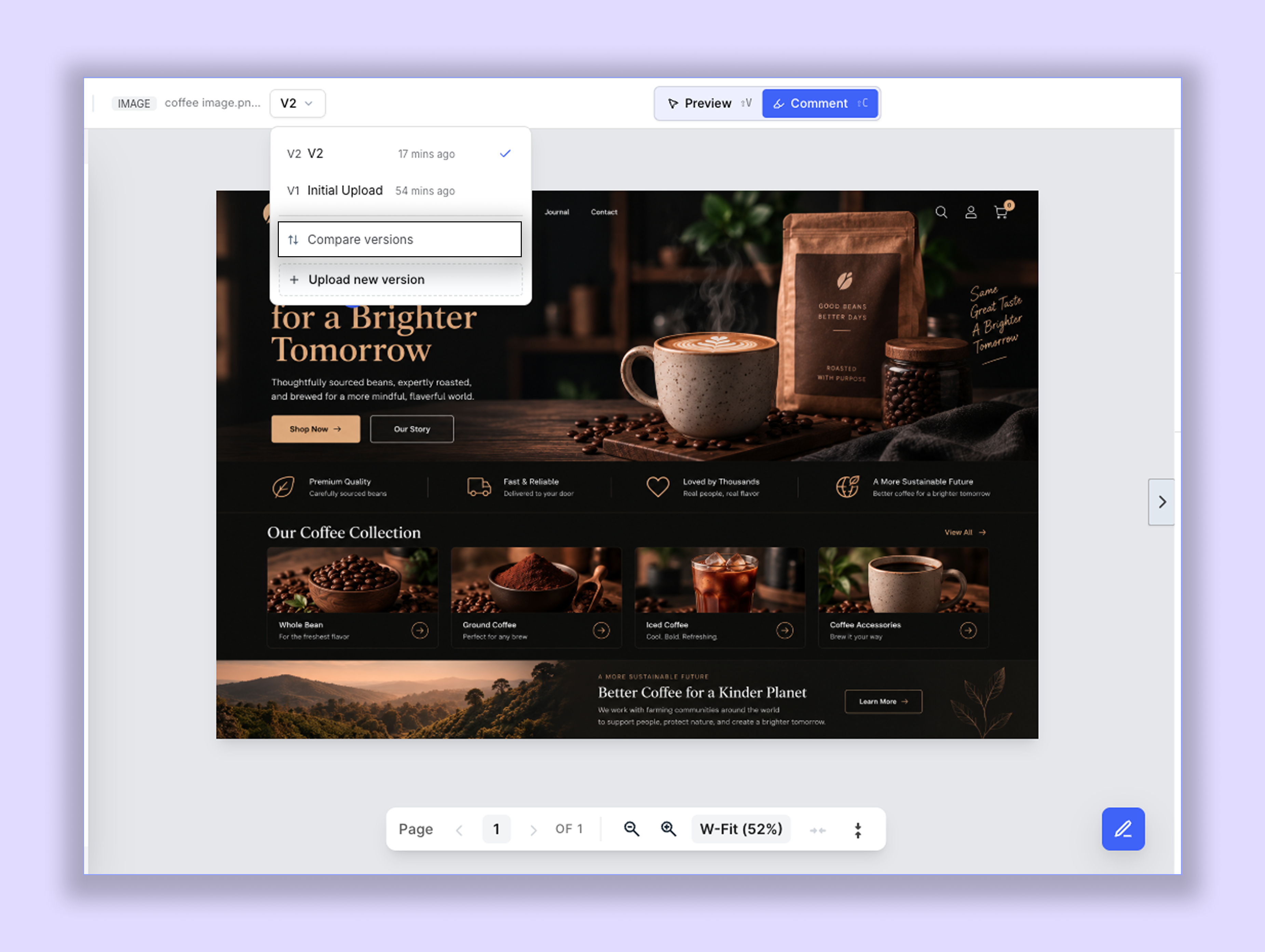
Compare two versions
Once you're in Version Comparison:
Select the version you want to view on the left.
Select the version you want to compare it with on the right.
Review both versions side by side.
Use the comparison slider in the middle to move between the two versions.
This makes it easier to spot changes without having to open each version separately.
Link Pages
When comparing projects with multiple pages, you'll see a Link pages option at the top of the comparison view.
When pages are linked, navigating through the pages keeps the corresponding pages together on both sides of the comparison.
For example, if you're comparing:
V1 — Page 2
V2 — Page 2
Unlink Pages
You can also choose to unlink the pages when you want to navigate through each version independently.
This is useful when the two versions don't have the same page structure or when you want to compare different pages from each version.
For example, you might want to view:
V1 — Page 2
V2 — Page 4
Review comments while comparing
You can also choose whether comments are visible on each version.
Each side of the comparison has its own Comments toggle, so you can turn comments on or off depending on what you want to review.
For example, you can keep comments enabled on the older version to review the original feedback, while turning them off on the newer version if you want to focus only on the changes.
You can also enable comments on both versions when you want to review feedback alongside the changes.
Supported project types
Version Comparison is currently available for:
Images
PDF
Word / DOCX
PPT
Video
You can use the same comparison workflow to review different versions of these supported project types.
A simple example
Let's say a designer uploads V1 of a design.
You review it and leave several comments requesting changes.
The designer then uploads V2 after making those updates.
Instead of opening V1 and V2 separately, you can open Version Comparison and view both versions together.
You can then:
Keep V1 on one side and V2 on the other.
Enable comments to review the original feedback.
Use Link Pages if you want both versions to stay on corresponding pages.
Unlink pages if you need to navigate through each version independently.
Use the comparison slider to review the changes.
Check whether the feedback from V1 has been addressed in V2.
This gives you a much clearer view of how the project has evolved from one version to the next.
Was this helpful?
Still need help? Ask the team