Linear Integration
Written By Team BugSmash
Last updated 3 months ago
Connect BugSmash with Linear to automatically sync feedback, comments, and task updates. This helps your team manage work in Linear while keeping everything up to date in BugSmash
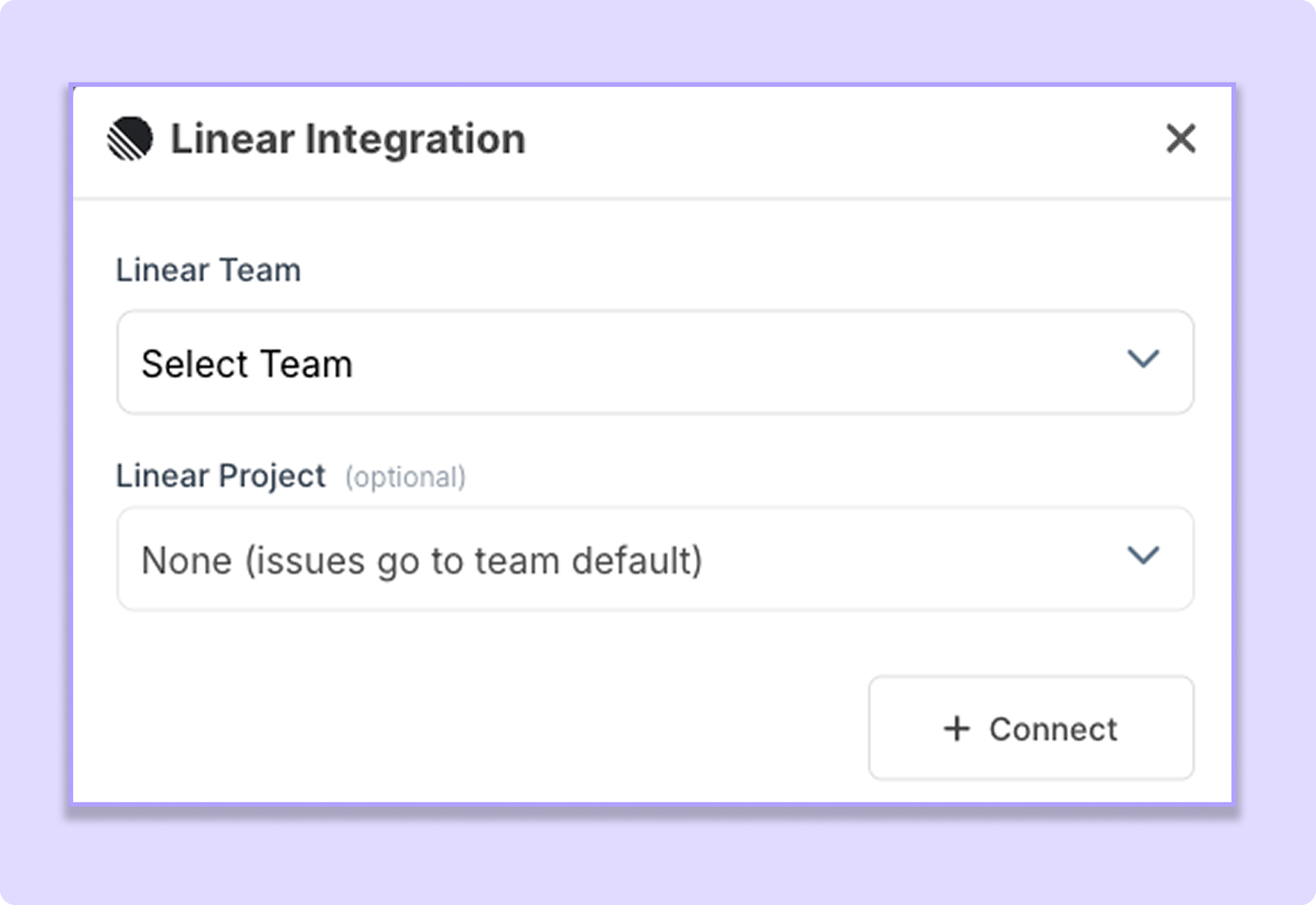
Connect Linear
You can connect Linear to each BugSmash project individually.
To get started:
Open your BugSmash project.
Go to Project Settings.
Open the Integrations tab.
Select Linear.
If this is your first time connecting to Linear, authorize your Linear account. This only needs to be done once and will automatically connect Linear to your workspace.
Select your Linear Team.
(Optional) Select a Linear Project. If you don't select one, issues will be created in the team's default backlog.
Click Connect.
Your project is now connected to Linear.
Note: After authorizing Linear once, you can connect additional BugSmash projects without reconnecting your Linear account.
User Mapping
User Mapping helps BugSmash match your workspace users with the right Linear members. This keeps assignments in sync between both platforms.
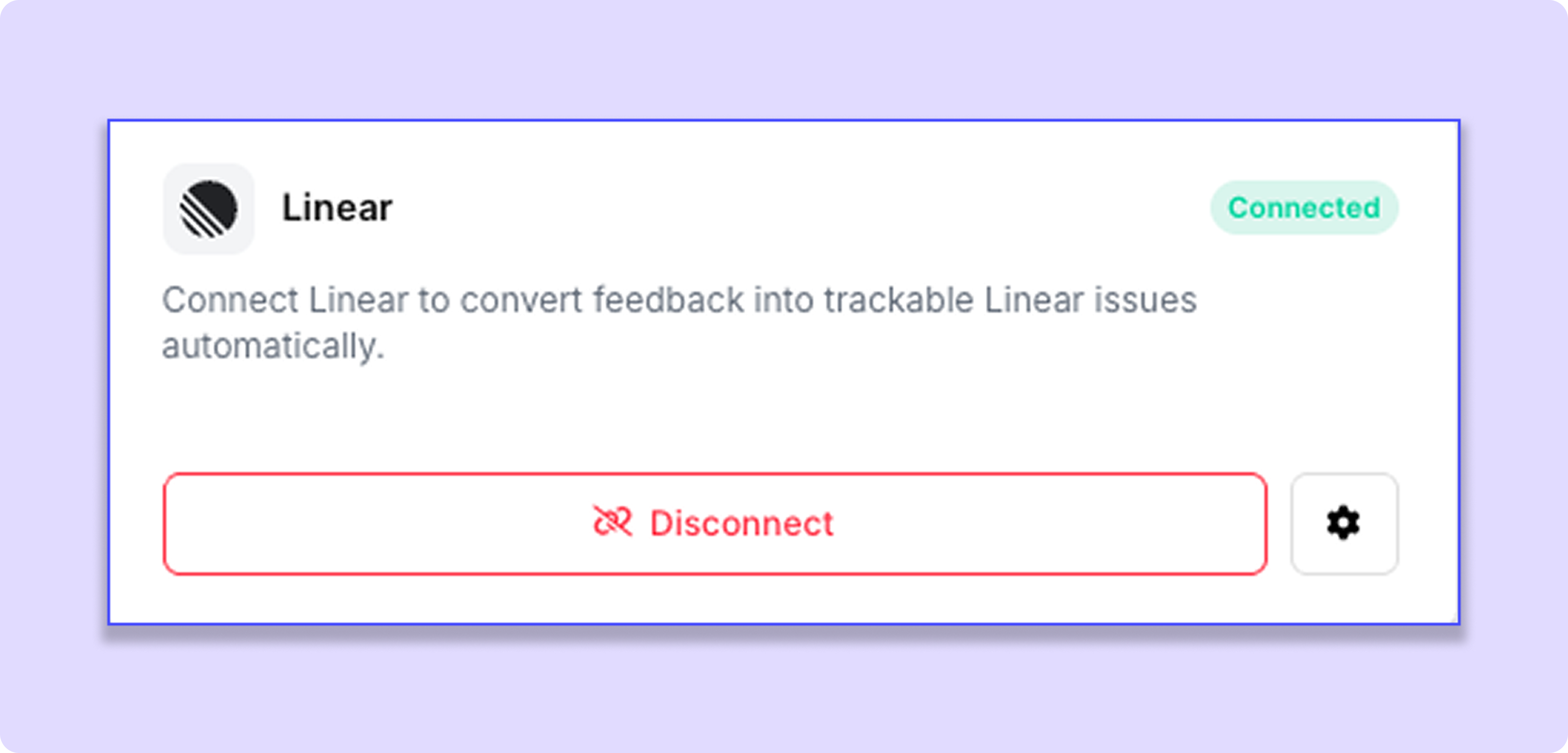
To set it up:
Go to Workspace Settings.
Open Integrations.
Click the Settings icon next to the Linear integration.
Open User Mapping.
Match each BugSmash user with the corresponding Linear member.
Save your changes.
Once configured, assignments stay synced in both directions.
For example:
Assign a comment in BugSmash, and the linked Linear issue will be assigned to the mapped Linear member.
Change the assignee in Linear, and the assignment will automatically update in BugSmash.
Tip: We recommend mapping all workspace members to ensure assignments sync correctly.
Priority Sync
BugSmash also syncs issue priorities with Linear.
When you update the priority in either BugSmash or Linear, the linked item is automatically updated on the other platform.
This allows your team to manage priorities from whichever tool they use most.
What Gets Synced?
The Linear integration automatically syncs:
New comments
New replies
Comment updates
Comment status changes
Task assignments (via User Mapping)
Priority changes
All supported events are synced between BugSmash and Linear, allowing your team to work from either platform.
Note: Changes made in BugSmash may take up to 6 minutes to appear in Linear.
Best Practices
Connect each BugSmash project to the appropriate Linear Team.
Select a Linear Project if you want issues to be grouped under a specific project.
Configure User Mapping so assignments stay synchronized.
Once everything is set up, your team can continue working from either BugSmash or Linear while comments, assignments, priorities, and statuses stay synchronized automatically.
Was this helpful?
Still need help? Ask the team