Export Comments from BugSmash
Written By Team BugSmash
Last updated 3 months ago
Need to share feedback with your team, clients, developers, or AI tools? BugSmash lets you export comments in multiple formats, making it easy to continue your workflow outside the platform.
Whether you're creating client reports, tracking issues in Excel, or using AI to summarize feedback, you can export your comments in just a few clicks.
Available Export Formats
BugSmash currently supports the following export formats:
1. PDF Report Export
Generate a clean, shareable PDF report containing your project comments.
Best for:
Client review reports
Project sign-offs
Offline documentation
Sharing feedback with stakeholders
2. Excel Export
Export comments into an Excel spreadsheet for tracking and reporting.
Best for:
QA tracking
Project management
Progress reporting
Custom analysis
3. Export for AI Agents (JSON)
Export your comments in JSON format for integrations, automations, or AI workflows.
Best for:
Developers
Custom integrations
AI-powered workflows
Internal tools
4. Export for AI Agents (Markdown)
Generate a Markdown file that's ready to use with AI assistants like ChatGPT, Claude, Gemini, or other LLMs.
You can use it to:
Summarize feedback
Generate development tasks
Create implementation plans
Draft release notes
Prioritize issues
How to Export Comments
There are two ways to access the Export option.
Option 1: From the Comments Menu
Open your BugSmash project.
Go to the Comments panel.
Click the three-dot (⋮) menu in the top right corner of the sidebar
Select your preferred export format.
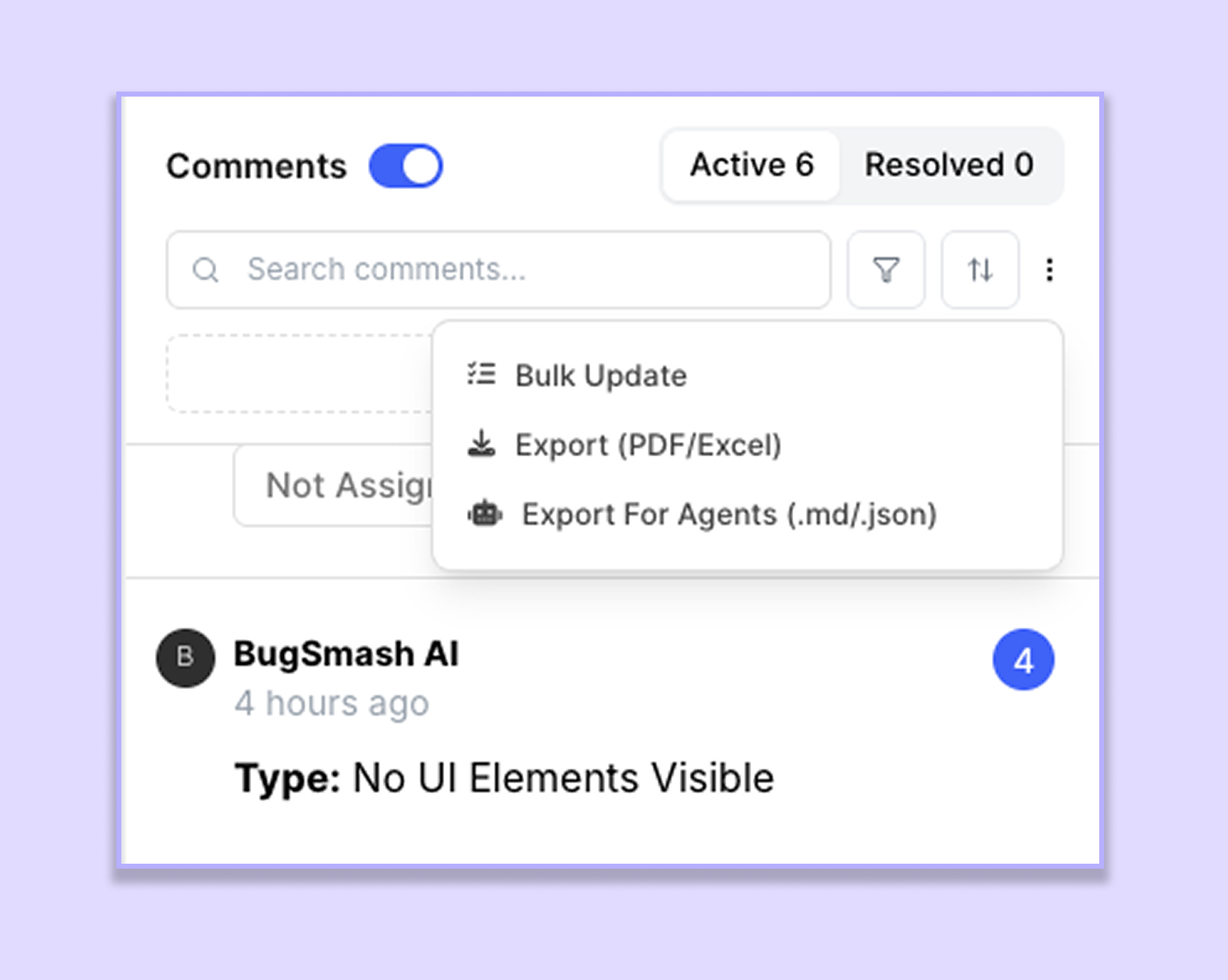
Option 2: Using Bulk Actions
Select the comments using the checkboxes beside each comment.
Open the Bulk Actions menu.
Click Export.
Choose your preferred export format.
Note: Both options open the same export workflow. You can use whichever is more convenient.
Receiving Your Export Email
Where will I receive my export?
Your export will be sent to the email address associated with your BugSmash account.
How long does it take to receive the export?
Most exports are generated within a few minutes. Larger projects may take slightly longer.
I haven't received my export email.
If you haven't received the export after a few minutes:
Check your Spam or Junk folder.
Make sure you're checking the email associated with your BugSmash account.
If you still haven't received it, please contact our support team, and we'll be happy to help.
Was this helpful?
Still need help? Ask the team