Edit Profile Settings — Email Notifications, Timezone, Profile Image & more
Written By Team BugSmash
Last updated 3 months ago
You can manage your personal account details, workspace preferences, and account security from the Edit Profile section.
To access these settings:
Bottom Left Corner → Profile Overview → Edit Profile
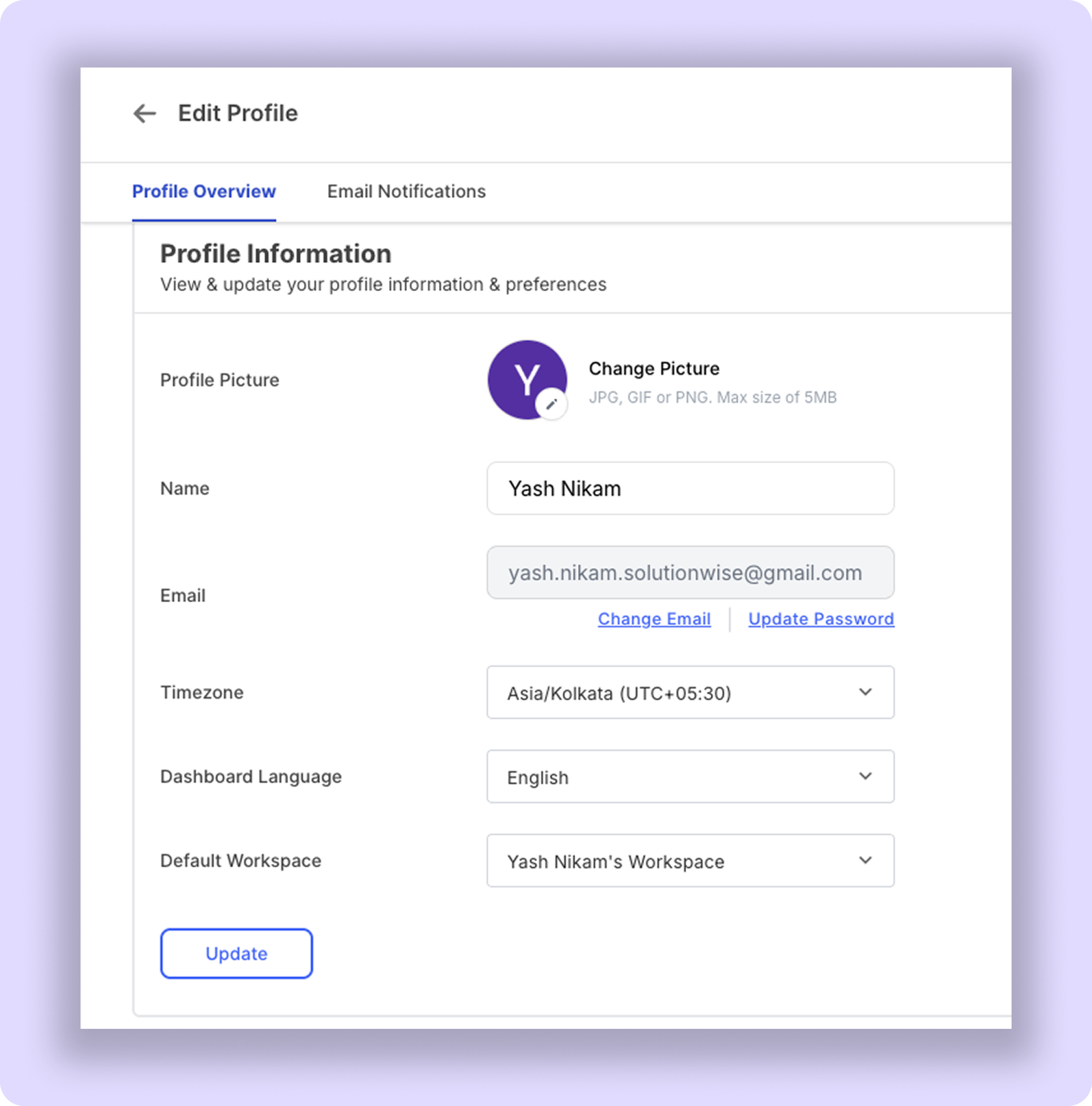
Profile Picture
You can change or update your profile picture anytime from the Profile Overview section.
Simply click on the current profile picture, and a pop-up window will appear with a square preview box.
From there:
Click the pen/edit icon on the top-right corner of the pop-up
Select or upload a new image
Save the changes
Supported formats: JPG, PNG, GIF
Maximum file size: 5MB
Name
Update the display name shown across comments, feedback threads, approvals, and collaborations.
Email & Password
You can update both your email address and password anytime from the same settings page.
Your email is used for:
Login access, Invitations, and notifications
To update:
Click Change Email to update your active email address
Click Update Password to change your account password for better security
Tip: Always keep your active email updated to avoid login or notification issues later
Timezone
Set the correct timezone so reminders, due dates, notifications, and timestamps display accurately.
Dashboard Language
You can personalise your BugSmash dashboard by selecting your preferred language. Once selected, your dashboard interface will automatically switch to the chosen language.
Supported Languages: English • Arabic • Chinese (Simplified) • Chinese (Traditional) • Czech • Dutch • French • German • Indonesian • Japanese • Korean • Malay • Polish • Portuguese • Russian • Spanish • Thai • Turkish • Ukrainian • Vietnamese
Note: Your language preference only applies to your own dashboard. It does not affect the language of other members, collaborators, or guest reviewers. Each user can choose their preferred language independently.
Default Workspace
If you’re in multiple workspaces, you can choose which workspace should open by default after login, so you don’t have to switch workspaces manually every time
You can also update this anytime based on your currently active workspace or workflow
Save Changes
After updating any settings, click the Update button to apply the changes.
Was this helpful?
Still need help? Ask the team