Project Access & Sharing
Written By Team BugSmash
Last updated About 2 months ago
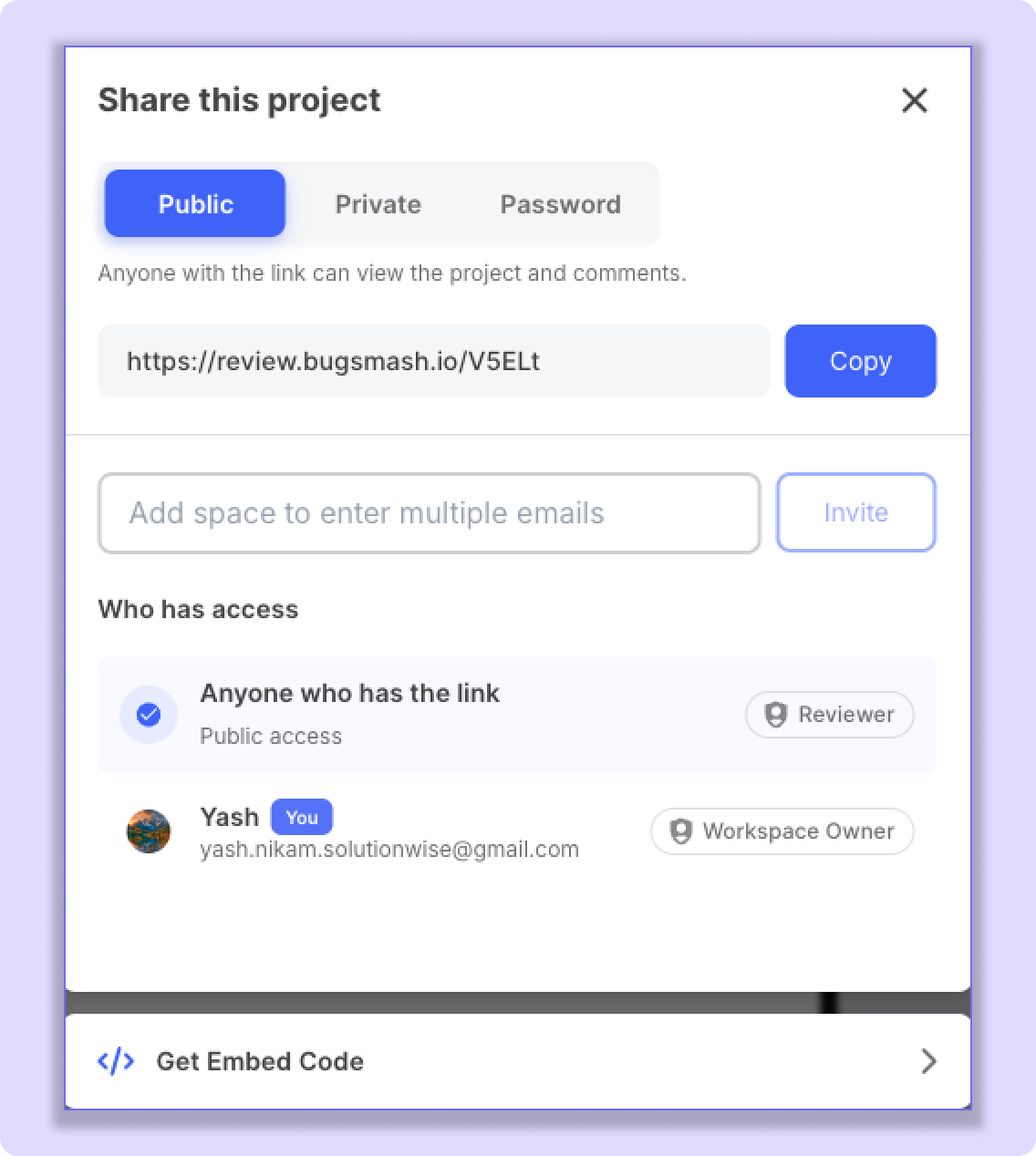
BugSmash gives you three ways to control who can access your projects: Public, Private, and Password-Protected sharing.
This lets you choose the right level of access depending on how you want to collect feedback and collaborate with your team or clients.
You can manage these settings from:
Open Project → Share Settings (top-right corner)
Public Mode
Public Mode is the easiest and fastest way to collect feedback.
In this mode:
Anyone with the project link can open the project.
Guests can leave comments without creating a BugSmash account if Allow No-Login Guest Comments is enabled.
Clients can start reviewing without needing an invitation or login.
Public Mode is useful when you want to share a project quickly and make it easy for clients or other external users to leave feedback.
Private Mode
Private Mode gives you more control over who can access your project.
In this mode:
Only invited users can access the project.
People who only have the project link cannot open it.
Guests need to be invited through Share Settings using their email address.
No-Login Guest Comments are not available in Private Mode.
Once invited, the user receives an email notification. They can then log in to BugSmash and access the project.
1. Why Login Is Required in Private Mode
Private Mode is designed for more controlled collaboration.
Since users cannot access a private project simply through the link, each reviewer needs to be invited and log in using the same email address that received the invitation.
This helps teams:
Clearly identify who added each comment.
Prevent unknown users from accessing the project.
Maintain better control over project access.
Keep collaboration limited to invited users.
In simple terms, Private Mode ensures that only invited and verified users can access the project and participate in the feedback process.
Password Protection Mode
Password Protected Sharing gives you a simple way to protect a project while still sharing it through a regular project link.
When Password mode is enabled:
Anyone with the project link must enter the password before accessing the project.
Workspace Owners, Admins, and Members can add, change, or update the project password anytime
Guests and Collaborators need to enter the password when they open the project using the share link.
Once the correct password is entered, they can view the project and leave comments.
2. How to Enable Password Protection
Open the project and go to:
Share Settings → Password
Set your password and click Update.
You can then copy the project link and share it with the people who need access.
When a Guest or Collaborator opens the shared link, they will be asked to enter the password before they can access the project.
Password Protected Sharing is useful when you want to share a project easily through a link while still adding an extra layer of protection.
Choosing the Right Access Mode
Choose the mode that best fits your workflow:
1. Public
Best for quick and open feedback.
Anyone with the link can access the project, and no-login guest commenting can be enabled.
2. Private
Best for controlled team or client collaboration.
Only invited users can access the project, and they must log in to participate.
3. Password
Best when you want to share a project through a link while protecting it with a password.
Guests and collaborators simply enter the password when opening the shared link.
With these three options, you can choose how open or controlled you want your BugSmash project to be depending on your review workflow.
Was this helpful?
Still need help? Ask the team