Trello Integration
Written By Team BugSmash
Last updated 3 months ago
Connect BugSmash with Trello to automatically turn feedback into actionable tasks. Once connected, comments, replies, status updates, and assignments stay in sync, so your team can work from either platform without missing any updates.
Connect Trello
You can connect Trello to each BugSmash project individually.
To get started:
Open your BugSmash project.
Go to Project Settings.
Open the Integrations tab.
Select Trello.
If this is your first time connecting Trello, authorize your Trello account. This only needs to be done once and will automatically connect Trello to your workspace.
Select the Trello Board you want to connect.
Choose which Trello list should represent Open comments.
Choose which Trello list should represent Resolved comments.
Click Save.
Your project is now connected to Trello.
Note: After authorizing Trello once, you can connect additional BugSmash projects without reconnecting your Trello account.
Status Mapping
Choose how BugSmash comment statuses map to your Trello lists.
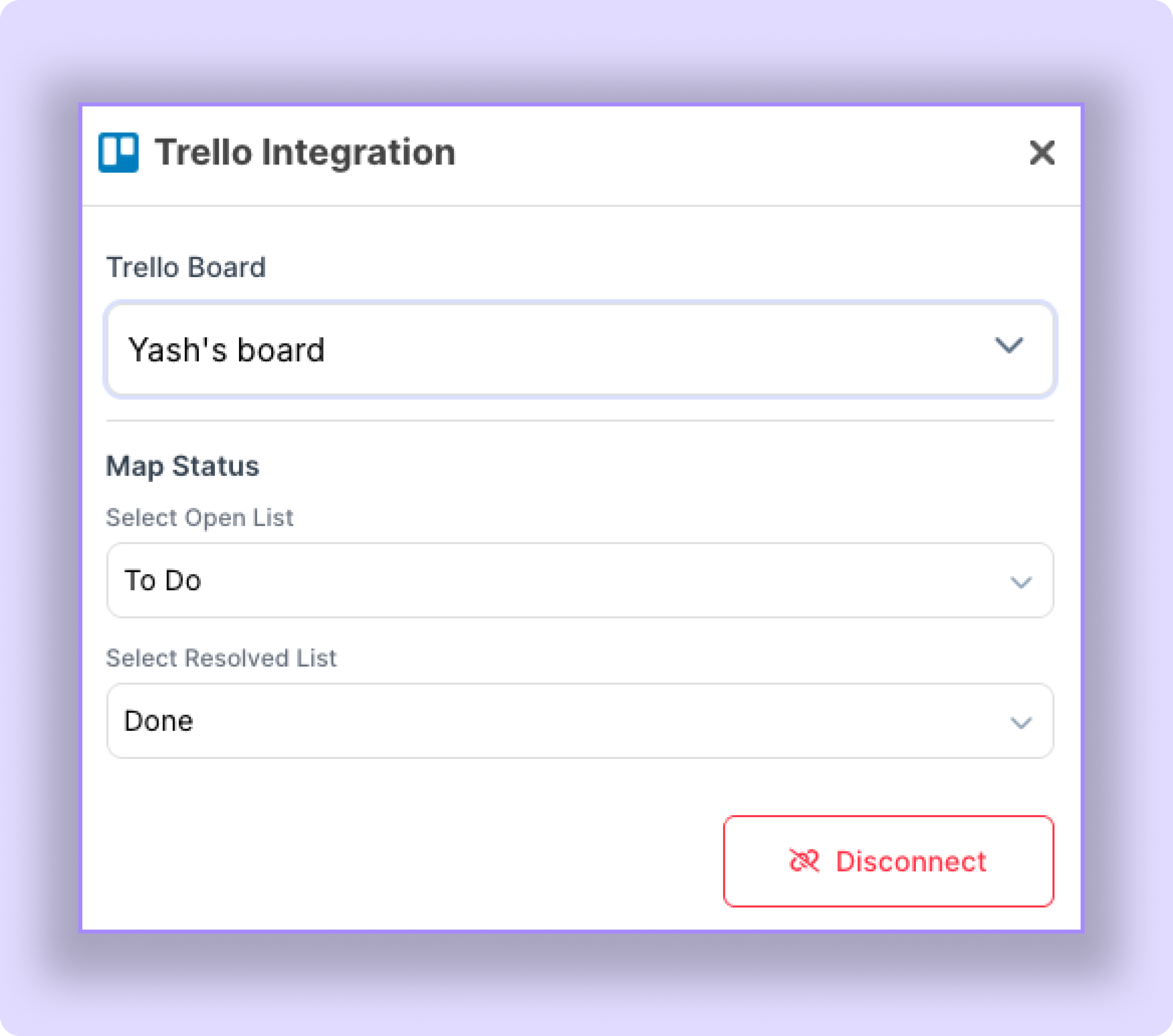
For example:
Open → To Do
Open → Doing
Resolved → Done
Status changes are synced both ways.
This means:
Moving a comment to Resolved in BugSmash updates the linked Trello card.
Moving the Trello card to another mapped list updates the comment status in BugSmash automatically.
You can configure the mapping to match your team's workflow.
User Mapping
User Mapping keeps assignments in sync between BugSmash and Trello.
To set it up:
Go to Workspace Settings.
Open Integrations.
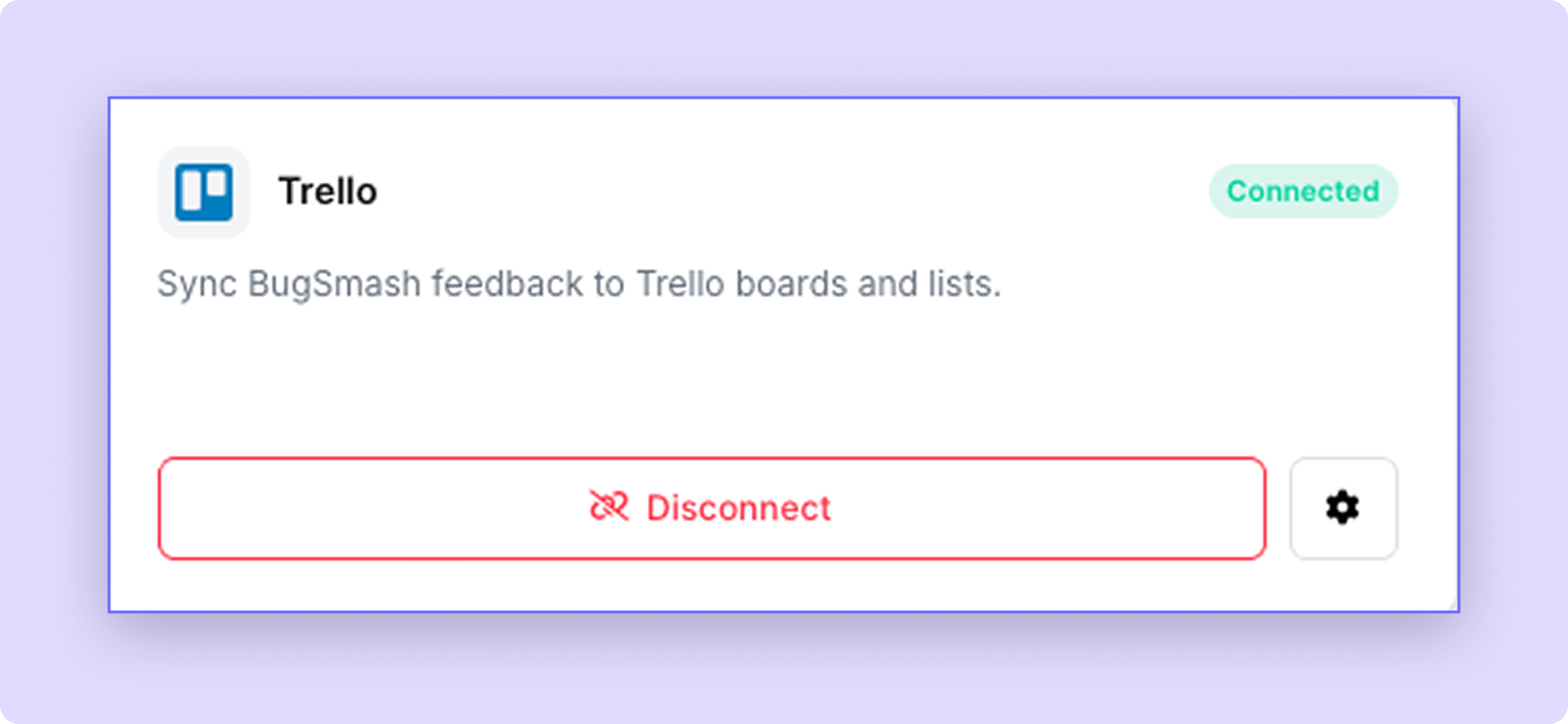
Click the Settings icon next to the
Trello tab.
Open User Mapping.
Match each BugSmash user with the corresponding Trello member.
Save your changes.
Once configured, assignments stay synced in both directions.
For example:
Assign a comment in BugSmash, and the linked Trello card will be assigned to the mapped Trello member.
Change the assignee in Trello, and the assignment will automatically update in BugSmash.
Tip: We recommend mapping all workspace members to ensure assignments sync correctly.
What Gets Synced?
The Trello integration automatically syncs:
New comments
New replies
Comment updates
Comment status changes
Task assignments
All supported events are synced between BugSmash and Trello, allowing your team to work from either platform.
Note: Changes made in BugSmash can take up to 6 minutes to appear in Trello.
Best Practices
Connect each BugSmash project to the appropriate Trello board.
Set up Status Mapping based on your team's workflow.
Configure User Mapping to keep assignments accurate.
Allow a few minutes for BugSmash updates to sync with Trello.
Once everything is set up, your team can manage feedback from either BugSmash or Trello while comments, statuses, and assignments stay synchronized automatically.
Was this helpful?
Still need help? Ask the team