Renaming projects and files
Written By Team BugSmash
Last updated 4 months ago
When a new project is created, BugSmash automatically assigns a default project name based on the uploaded file, website URL, or project type.
You can rename the project anytime to keep your workspace cleaner and easier to manage with multiple files
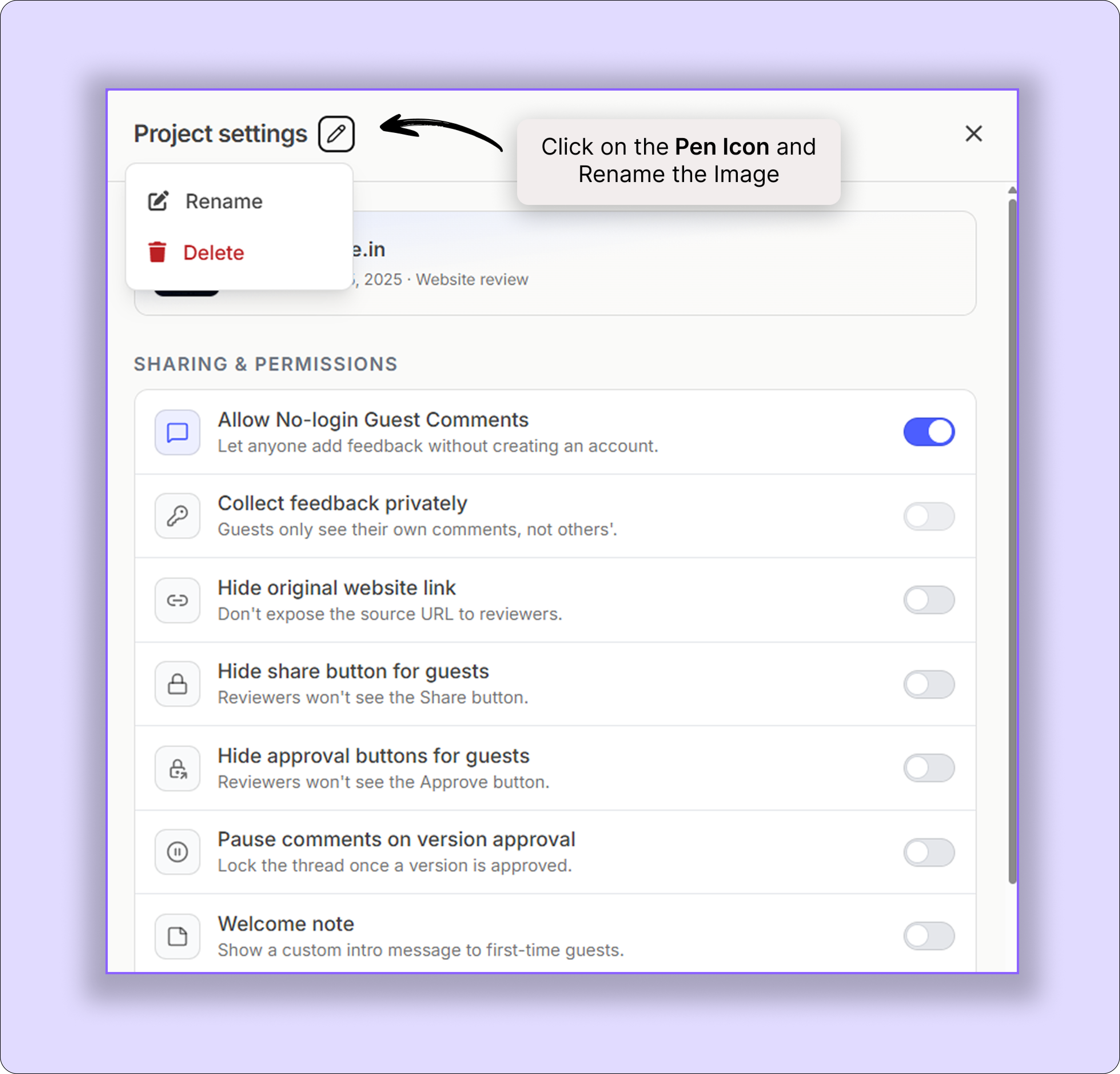
Steps To Rename The Project
You can rename a project directly from the dashboard:
Dashboard → 3 dots on the project thumbnail → Rename Project
You can also rename the file inside the project itself:
Open the project → Project Settings (Top right corner) → Click on the pen icon and Rename

Renaming Images Inside a Project
You can upload multiple image files inside a single project and rename them individually for better organisation.
Steps
Open the project
Hover over the image preview from the left sidebar
Edit or update the image name

Quickly checking the project name while you're on the project review page
Inside the project review page, you can view the project name directly from the project title section in the top-left corner.
If the project name is long and gets truncated, simply hover over it to view the complete project name.
You can also find the project name and the uploaded file name inside Project Settings.
Naming Best Practices
Keep project names:
Clear, Short and Easy to recognize
Examples:
Client A – Homepage Review
Q4 Marketing Video
Mobile App UI Feedback
Landing Page v2
Was this helpful?
Still need help? Ask the team