Adding Comments & Feedback
Written By Team BugSmash
Last updated 3 months ago
Pinpointed comments help teams and clients leave feedback exactly where changes are needed, making reviews much clearer and easier to manage.
Commenting on Websites
Websites open in Browse Mode by default, allowing you to navigate the website, interact with menus and pop-ups, and test the website normally.
When you're ready to leave feedback, simply switch to Comment Mode from the top toolbar (Shortcut: Shift + C).
Once in Comment Mode, click anywhere on the page to drop a pinpointed comment on the exact area where feedback is needed.
Commenting on PDFs, Images, Videos & Other Files
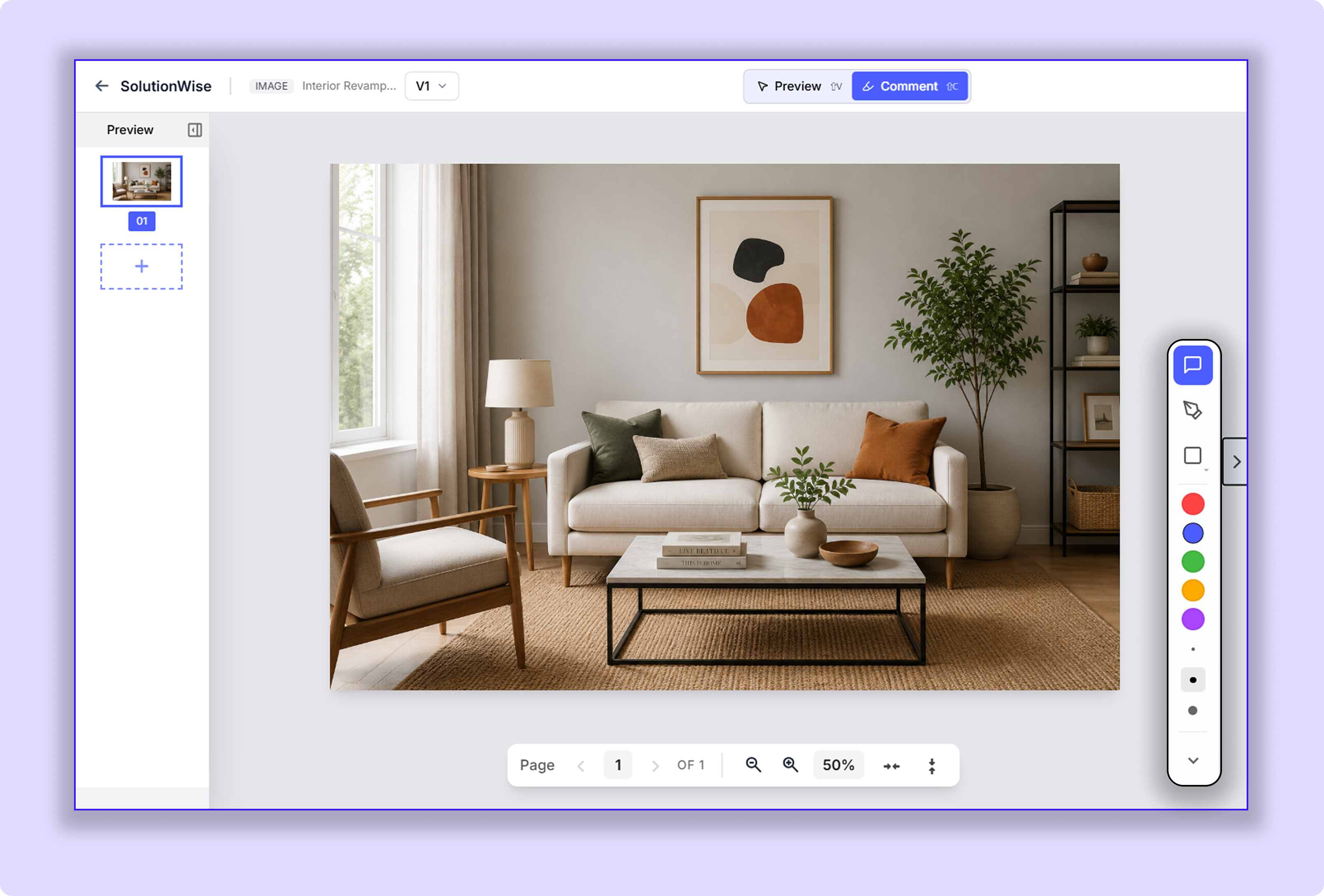
For PDFs, Images, Videos, Audio files, Emails, PPTs, and other supported files, BugSmash provides two different viewing modes to make reviewing more organised.
Preview Mode → View, scroll, zoom, play, or navigate through the file.
Comment Mode → Place feedback pins, annotations, and replies.
Comment Options
While creating or managing a comment, you can collaborate more effectively using the following options.
1.🎙️ Audio Transcription
Prefer speaking instead of typing?
BugSmash automatically converts your voice into text while also attaching the original audio recording to the same comment thread.
2. 👥 Mentions
Mention teammates using @username To notify them directly inside a comment. They get an instant notification for the mention
3. 📎 Attachments
Attach supporting files or screenshots to provide additional context.
Note: Each comment currently supports one attachment.
4. 🏷️ Tags
Tags help organise comments and make them easier to search and filter later.
Tags help to organise comments and make them easier to filter later: UI, UX, Design, Content, Bug, UAT, or Production. You can add one or multiple tags to a comment.
Owners and Members can create new tags, while Collaborators and Guests can view and apply existing tags but cannot create new ones.
Note: Once a tag is created, it automatically becomes available across all projects in your workspace.
5. 👤 Assign Comments
Assign comments to Members or Collaborators responsible for implementing the requested changes.
6. 🚨 Set Priority
Set the priority level of a comment to help your team identify and resolve critical feedback first. Assign the level of priority to what matters the most
Annotation Tools
The Pen tab allows you to visually annotate files during reviews, making feedback clearer and easier to understand.
Available Tools: Shapes • Brush • Multiple Brush Sizes • Colours
Supported on: Images • PDFs • Videos • Audio Files • Emails • PPTs • Mobile Apps • Live Websites
Coming Soon: 3D Projects 🚀
Draggable Comment Pins
Placed a pin in the wrong location? Simply drag and reposition it instead of deleting and creating the comment again.
Supported on: Images • PDFs • Videos • Audio Files • Emails • PPTs
Coming Soon: Live Websites • 3D Projects 🚀
Best Practices
Keep one actionable point per comment.
Use annotations to explain feedback more clearly.
Mention teammates using
@usernameto notify them instantly.Organise comments using tags for easier filtering and tracking.
Assign comments to the right team members.
Set priorities so important feedback gets addressed first.
Was this helpful?
Still need help? Ask the team