Project Versioning
Written By Team BugSmash
Last updated 4 months ago
How To Upload A New Version
Open the existing project.
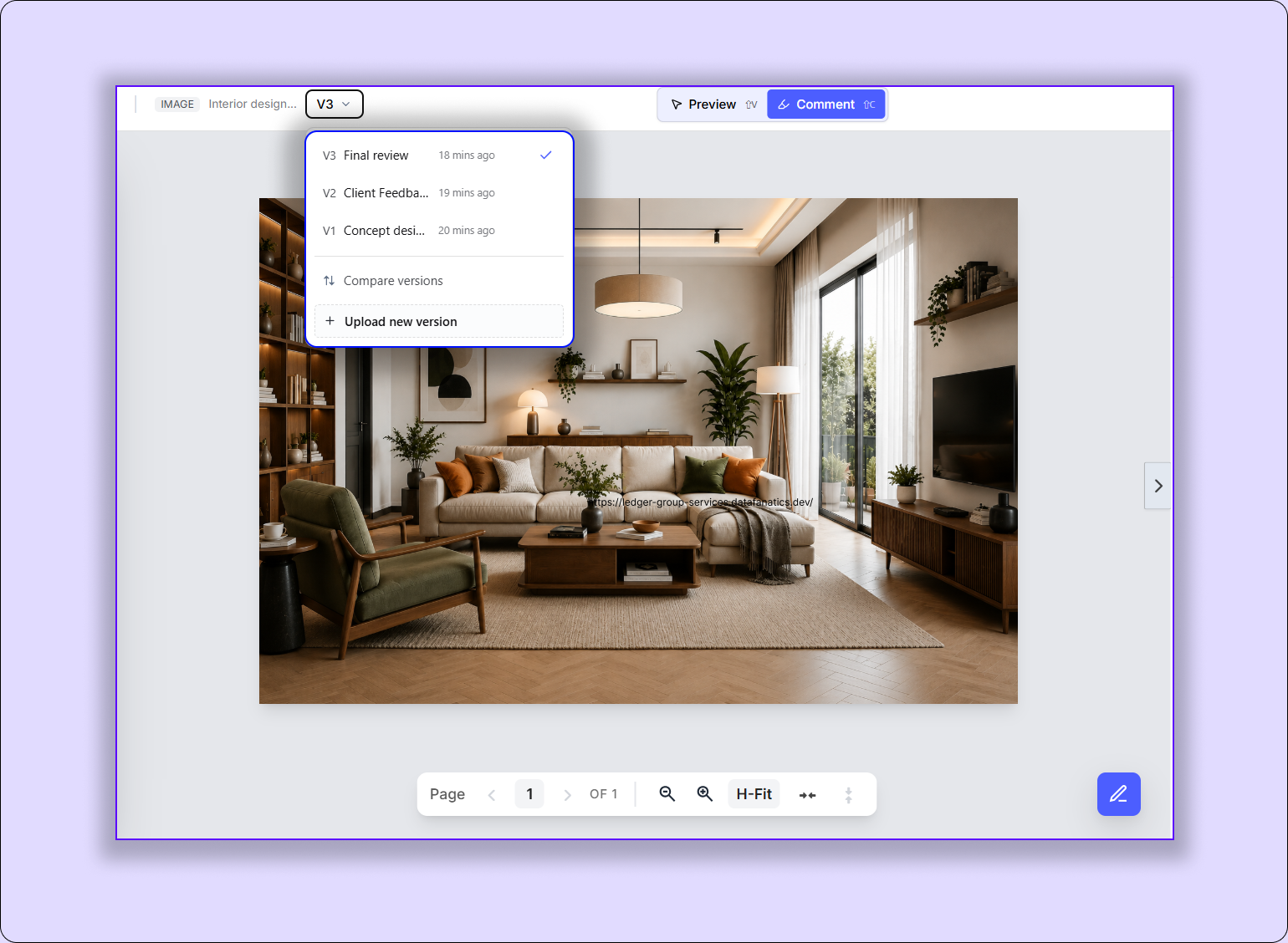
Click on the Version dropdown from the top-left corner of the project review page.
Select Upload New Version.
Give your version a meaningful name to make it easier to identify changes later.
Upload the updated file.
Once uploaded, the new file automatically becomes the latest version within the same project.
Why it’s useful
Versions play an important role in managing projects smoothly as feedback and changes grow over time.
Instead of replacing old files and losing context, versioning helps you:
Track changes easily
See how the project evolves
Keep old feedback connected to the correct version
Compare updates without confusion
This makes collaboration much cleaner for both teams and clients.
How It Works
Every time you upload a new version, it automatically gets assigned as per the sequence for eg (v1…v2….v3)
Older versions remain available for reference and comparison.
Comments and feedback always stay tied to the version they were added on.
This helps teams clearly understand:
what was changed
when it was changed
and which feedback has already been addressed
Example
A designer uploads the first homepage design as v1.
The client leaves feedback like:
“Increase button size”
“Change banner image”
After making the changes, the designer uploads v2 instead of replacing the original file.
Now both the team and client can:
“compare v1 and v2”
“track project progress clearly without losing history”
Tips & Best Practices
Always upload updates as new versions instead of replacing old files.
Use versions for every major design or content update.
Keep previous versions for reference until the project is finalised.
Mark the final approved version clearly to avoid confusion later.
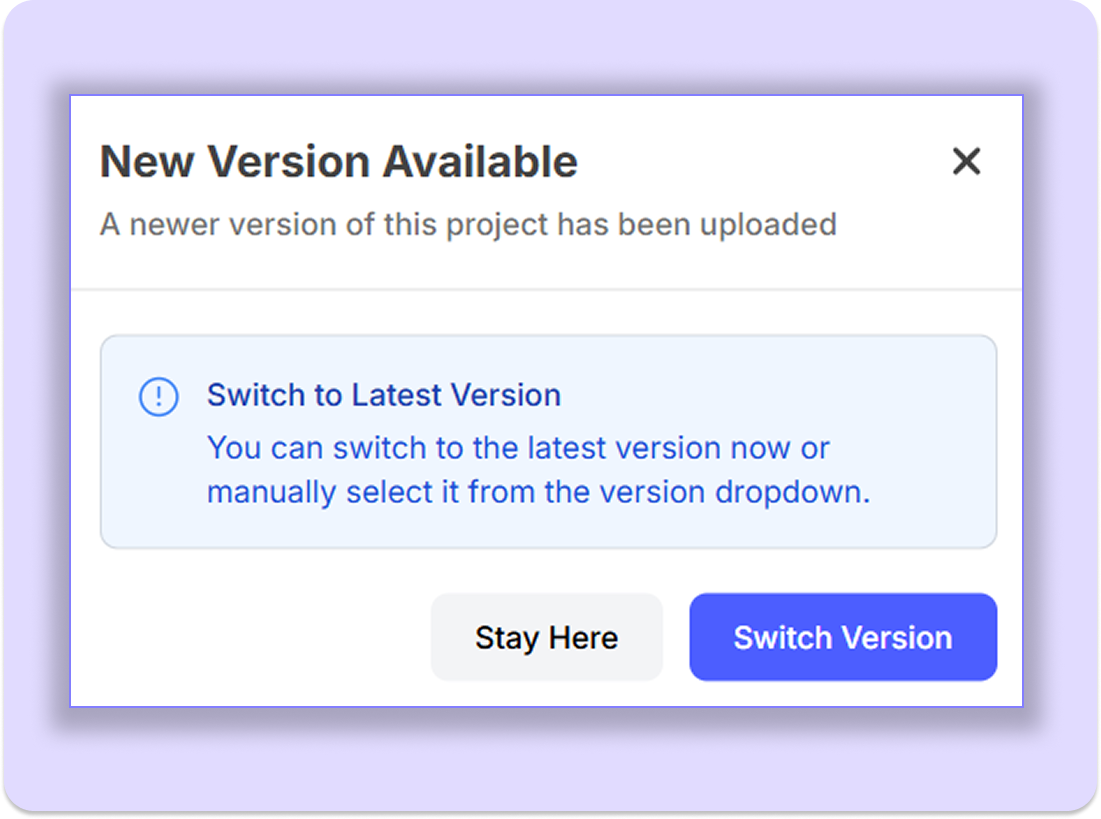
Note: If someone opens an older version of the project through a shared link, BugSmash automatically shows a pop-up suggesting to switch to the latest or stay on the same version.
Was this helpful?
Still need help? Ask the team