Airtable Integration
Written By Team BugSmash
Last updated 2 months ago
Overview
The BugSmash Airtable Integration automatically syncs BugSmash feedback to your Airtable base, making it easier for product, QA, engineering, and support teams to manage feedback in one place.
Note: This is currently a one-way sync from BugSmash → Airtable. Changes made in Airtable will not sync back to BugSmash.
Prerequisites
Before connecting Airtable, make sure you have:
An active Airtable account.
Access to the Airtable Base you want to connect.
Permission to create and update records in the selected table.
Connecting Airtable
Navigate to Workspace Settings.
Open Integrations.
Select Airtable.
Click Connect Airtable.
Authorize BugSmash to access your Airtable account.
Once connected, your Airtable account will be available for all projects within your workspace.
Connecting a Project
After connecting your Airtable account, you'll need to connect individual BugSmash projects.
Steps
Open the BugSmash Project you want to connect.
Click the Project Settings icon located in the top-right corner.
Open Integrations.
Select Airtable.
Choose the connected Airtable Base.
Select the Table where you'd like to sync your project.
Click Connect.
Once connected, all supported events from that project will automatically sync to the selected Airtable table.
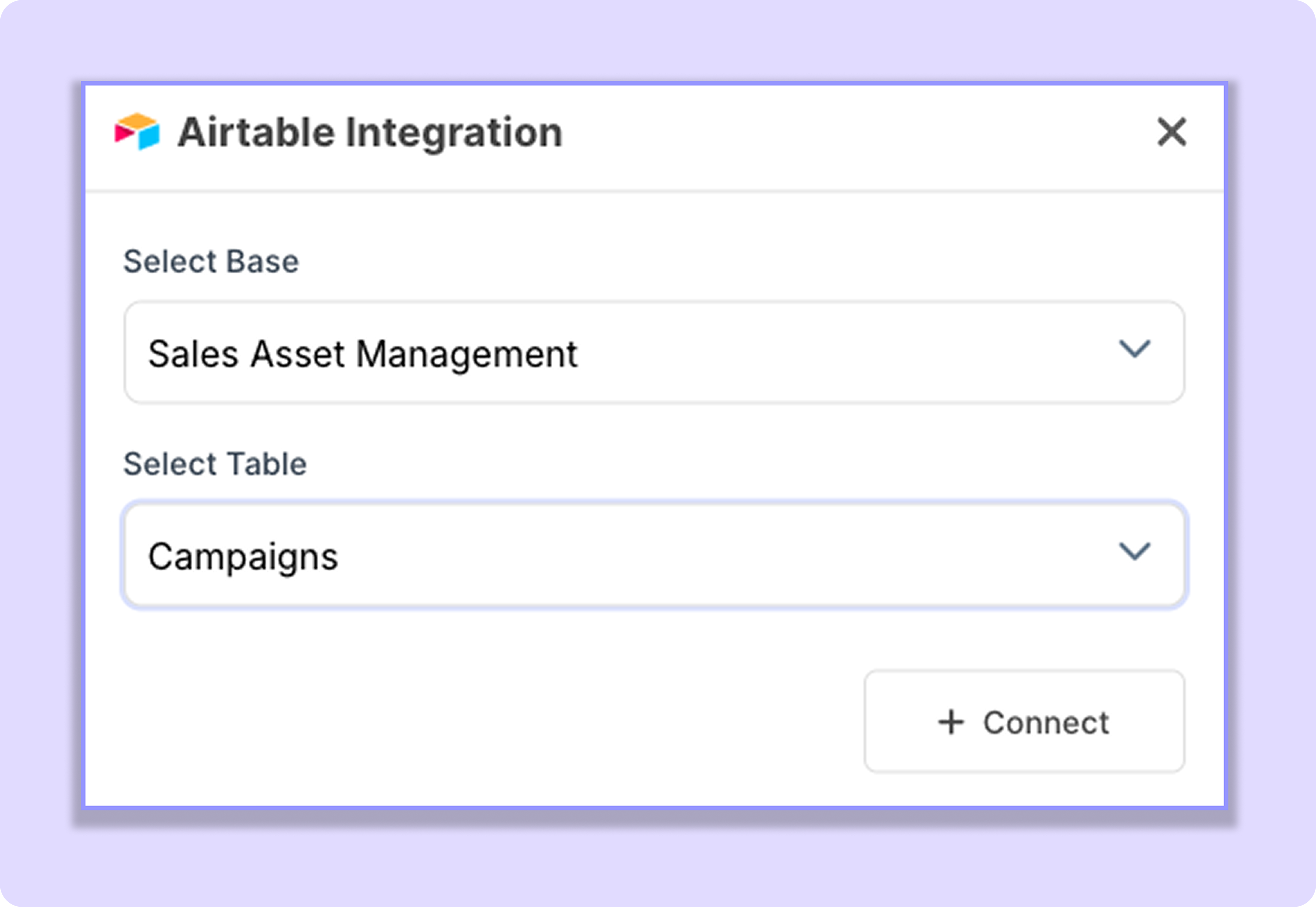
Note: Each BugSmash project can be connected independently. You can connect multiple projects to the same Airtable table or different tables based on your workflow.
Before You Connect
To ensure data syncs correctly, your Airtable table should contain the following field types.
Supported Sync Events
The following events are automatically synced from BugSmash to Airtable.
✅ New Comment
Creates a new Airtable record whenever a new comment is added in BugSmash.
✅ Comment Updated
Updates the corresponding Airtable record whenever a comment is edited.
✅ Comment Reply
Updates the Airtable record whenever a reply is added to a comment.
✅ Comment Status Changed
Updates the Airtable record whenever a comment's status changes (for example, Open → Resolved).
User Mapping
BugSmash also supports User Mapping.
If the user names in BugSmash and Airtable are different, you can manually map them during setup. This ensures comments and assignments are synced to the correct Airtable user.
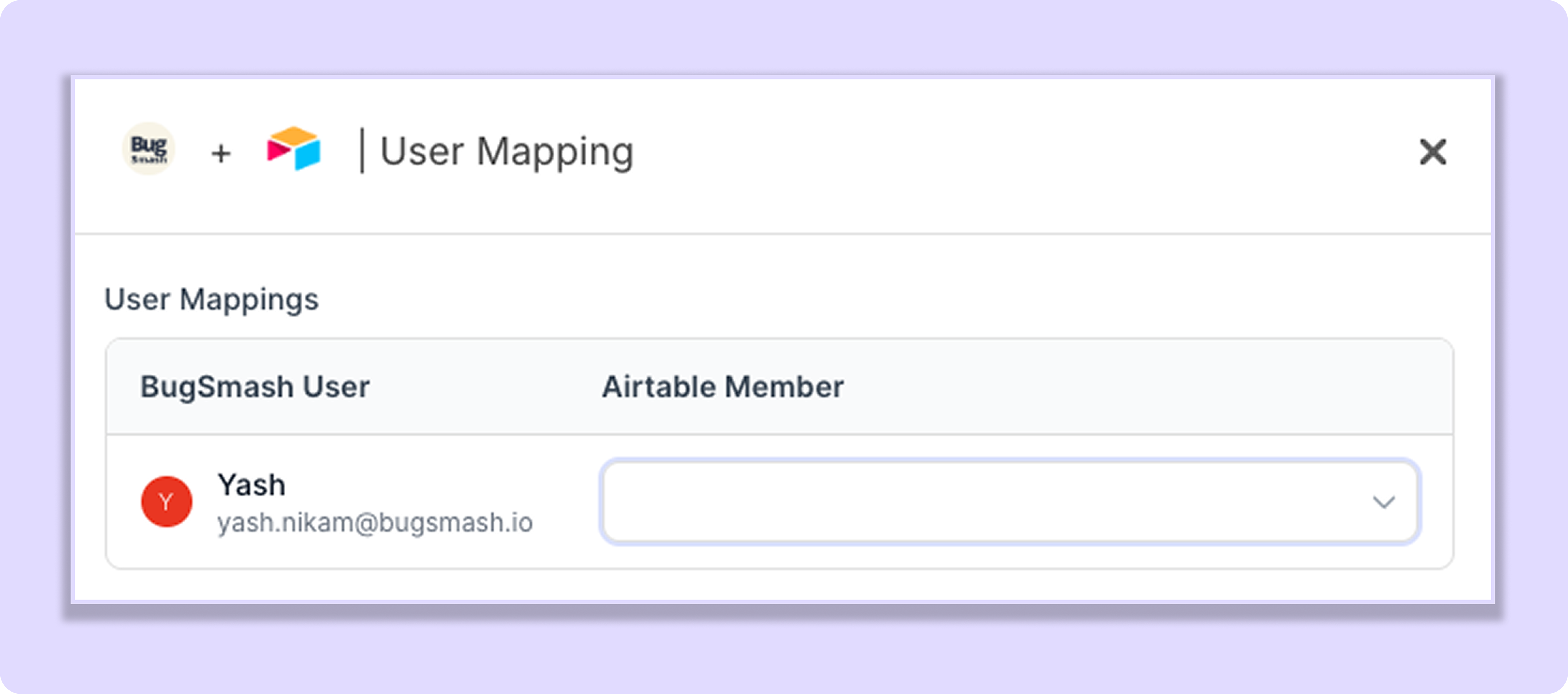
Example
Once mapped, BugSmash will automatically use the correct Airtable user whenever comments or assignments are synced.
Permissions Requested
During authorization, BugSmash requests permission to:
Access your selected Airtable Base.
Read the selected table structure.
Create records.
Update existing records.
BugSmash only accesses the Base and Table you explicitly connect to.
Was this helpful?
Still need help? Ask the team