How to Connect and Use BugSmash MCP
Written By Team BugSmash
Last updated 7 days ago
What is BugSmash MCP?
BugSmash MCP allows you to bring your BugSmash projects, reviews, and feedback directly into the AI tools your team already uses.
With BugSmash MCP, you can connect compatible AI assistants such as Claude, ChatGPT, Codex, and Cursor to your BugSmash workspace. Once connected, you can interact with your projects, retrieve feedback, manage comments, work with versions, and perform other supported actions using natural language.
BugSmash MCP acts as a secure bridge between your workspace and compatible AI assistants, helping you manage your review workflow without constantly switching between applications.
Where to Find BugSmash MCP
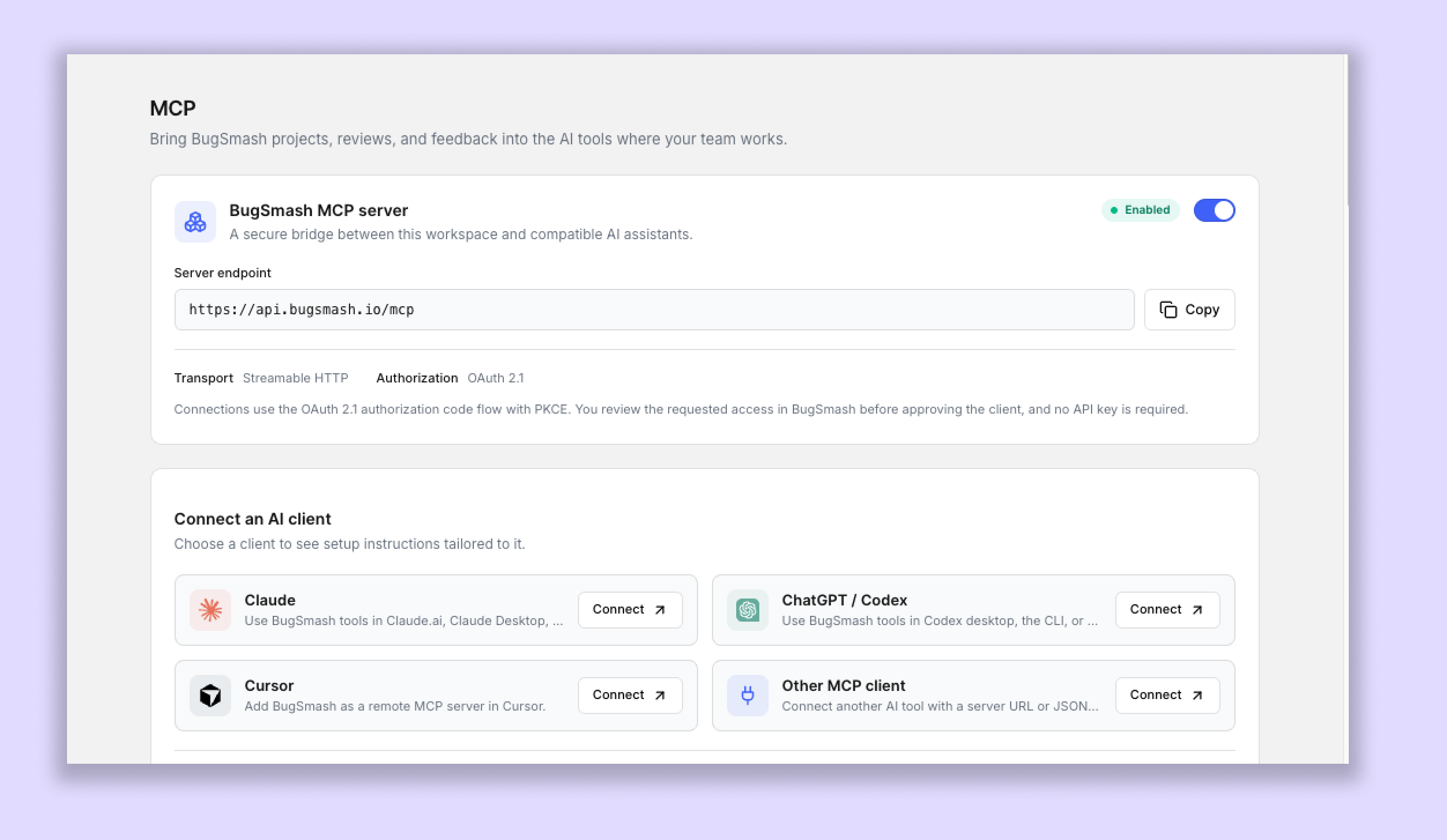
You can access MCP settings from:
Workspace Settings → MCP
Open your workspace settings and select the MCP section.
From here, you can enable or disable the BugSmash MCP server, copy the server endpoint, connect your preferred AI clients, and manage which tools connected clients can access.
Enable the BugSmash MCP Server
At the top of the MCP settings page, you'll find the BugSmash MCP Server option.
Make sure the toggle is enabled to allow compatible AI clients to connect to your workspace.
The MCP server uses the following connection configuration:
Transport: Streamable HTTP
Authorization: OAuth 2.1
Authentication: OAuth 2.1 Authorization Code Flow with PKCE.
You can copy the server endpoint directly from the MCP settings page using the Copy button.
Connections use secure OAuth authorization. You will be redirected to a BugSmash sign-in page during authentication, where you can review and approve the connection.
You do not need an API key to connect an AI client to BugSmash MCP.
Connect an AI Client
BugSmash provides connection instructions for different AI clients directly within the MCP settings page.
Under Connect an AI Client, you'll find options for Claude, ChatGPT / Codex, Cursor, and Other MCP Client.
Select your preferred client and follow the instructions displayed.
1. Connect Claude
You can connect BugSmash with Claude.ai, Claude Desktop, or Claude Code CLI.
For Claude.ai or Claude Desktop:
Open the MCP section under BugSmash Workspace Settings.
Click Connect under Claude.
Open Claude and navigate to Customize → Connectors.
Select Add → Add custom connector.
Name the server BugSmash.
Enter the BugSmash MCP server URL displayed in your workspace.
Select Add, then Connect.
Complete the authorization process in your browser.
When BugSmash opens the secure sign-in page, select Connect to approve access.
Once authorization is complete, BugSmash will be available as a connected MCP server in Claude.
For Claude Code CLI, select the corresponding tab in the Claude connection instructions and follow the configuration displayed there.
2. Connect ChatGPT / Codex
BugSmash supports connections with Codex Desktop, Codex CLI, and supported IDE extensions.
For Codex Desktop:
Open the MCP section under BugSmash Workspace Settings.
Click Connect under ChatGPT / Codex.
Open Codex Desktop.
Navigate to Settings → Plugins → MCPs.
Select Add server.
Name the server BugSmash and select Streamable HTTP.
Enter the BugSmash MCP server URL displayed in your workspace.
Save the server and select Authenticate.
Complete the authorization process in your browser.
Select Connect on the BugSmash authorization page to approve access.
For Codex CLI and IDE extensions, select the corresponding tab in the ChatGPT / Codex connection instructions and follow the configuration displayed there.
3. Connect Cursor
You can connect BugSmash to Cursor using its MCP server configuration.
Open the MCP section under BugSmash Workspace Settings.
Click Connect under Cursor.
Open Cursor.
Navigate to Cursor Settings → Tools & MCP.
Select New MCP Server.
Open the
mcp.jsonconfiguration file.Add the following configuration, replacing the example URL with the endpoint displayed in your BugSmash workspace:
{ "mcpServers": { "bugsmash": { "type": "http", "url": "YOUR_BUGSMASH_MCP_SERVER_ENDPOINT" } } }Save the configuration file.
Select Authenticate in Cursor.
Complete the BugSmash authorization process in your browser.
Select Connect to approve access.
Once authenticated, BugSmash MCP will be available in Cursor.
4. Connect Another MCP-Compatible AI Tool
If you're using another AI tool that supports remote MCP servers, you can connect it through the Other MCP Client option.
Open the MCP section under BugSmash Workspace Settings.
Click Connect under Other MCP Client.
Add a remote MCP server in your AI tool.
Select HTTP or Streamable HTTP as the transport.
Enter the BugSmash MCP server URL displayed in your workspace.
If your AI tool uses a JSON configuration file, add the following configuration:
{ "mcpServers": { "bugsmash": { "type": "http", "url": "YOUR_BUGSMASH_MCP_SERVER_ENDPOINT" } } }Complete the BugSmash authorization process in your browser.
Select Connect to approve access.
Your AI tool can now connect to BugSmash through MCP.
Managing MCP Tool Permissions
BugSmash allows you to control which actions connected AI clients can perform through individual tool toggles.
To manage these settings, navigate to:
Workspace Settings → MCP → Tools
Here, you'll find the available MCP tools, each with its own toggle. You can enable or disable individual tools depending on your team's requirements.
For example, you can enable tools that allow AI assistants to retrieve project information and feedback while disabling tools that create, update, or delete project data.
This gives you control over which BugSmash actions your connected AI assistants are allowed to perform.
You can change these settings at any time based on your workflow and access requirements.
Important: Changing tool availability does not disconnect connected OAuth clients or revoke their authorization. It only controls which tools those clients are allowed to use.
Try Asking Your AI Assistant
Once you've connected BugSmash MCP, you can interact with your workspace using natural language.
Here are a few examples of what you can ask your AI assistant:
Summarize project feedback:
"Summarize the open comments in my latest website review."
Create a project:
"Create a website review project and give me its share link."
Organize feedback:
"Group the latest feedback by theme and priority."
Add a comment:
"Add a comment with the acceptance criteria we just agreed on."
You can also ask your AI assistant to retrieve project information, manage comments, work with versions, and perform other actions supported by the enabled MCP tools.
The actions available depend on which tools are enabled in your BugSmash workspace.
Security and Authorization
BugSmash MCP uses OAuth 2.1 authorization with PKCE to establish secure connections between your workspace and compatible AI clients.
During the connection process, BugSmash opens a secure sign-in page where you can review and approve the requested access.
No API key is required for authentication.
You can also control which actions connected AI clients can perform through the individual tool toggles available in your MCP settings.
Important Notes
The BugSmash MCP server must be enabled for AI clients to connect.
You must complete the OAuth authorization process before using BugSmash MCP.
No API key is required to establish a connection.
Available actions depend on the tools enabled in your workspace.
Webhook creation is not currently supported through MCP. You must create webhooks directly from the BugSmash dashboard. Existing webhooks can be managed through supported MCP actions.
Disabling an individual tool does not disconnect or revoke an existing OAuth connection.
Make BugSmash Part of Your AI Workflow
BugSmash MCP brings your projects, reviews, and feedback directly into the AI tools you already use.
Whether you're retrieving project details, organizing feedback, managing comments, or starting AI Reviews, you can interact with BugSmash using natural language and let your AI assistant handle supported actions.
Connect BugSmash MCP to your preferred AI client and make your existing review workflow more efficient.
Was this helpful?
Still need help? Ask the team